People and groups
Labtagon AI OS makes no accounts of its own: people sign in through your organisation’s sign-in service, and appear in the Control Panel after their first sign-in. Groups are made from what that sign-in reports about them, or from people you add by hand.
People
Section titled “People”Control Panel → People lists everyone who has signed in, and how much their clients used AI OS: their organisation, Role, calls, failed calls, held calls, the tools’ own costs, when they last used AI OS and when they last signed in. Filter by period and group, or search by name or e-mail.
- People appear after their first sign-in. Copy sign-in link gives you the link to send them.
- People assigned by hand → Add by e-mail places an address in this organisation, also before that person’s first sign-in.
- Roles come from your company’s sign-in. The console shows Platform admin, Organisation admin, your company’s own roles, or Member.
A person’s page has the tabs Use, Profiles, Sign-ins, Groups and Quotas. Opening it is recorded, and the person sees that you did.
AI OS does not deactivate, delete or invite people: that is done at your sign-in service.
Groups
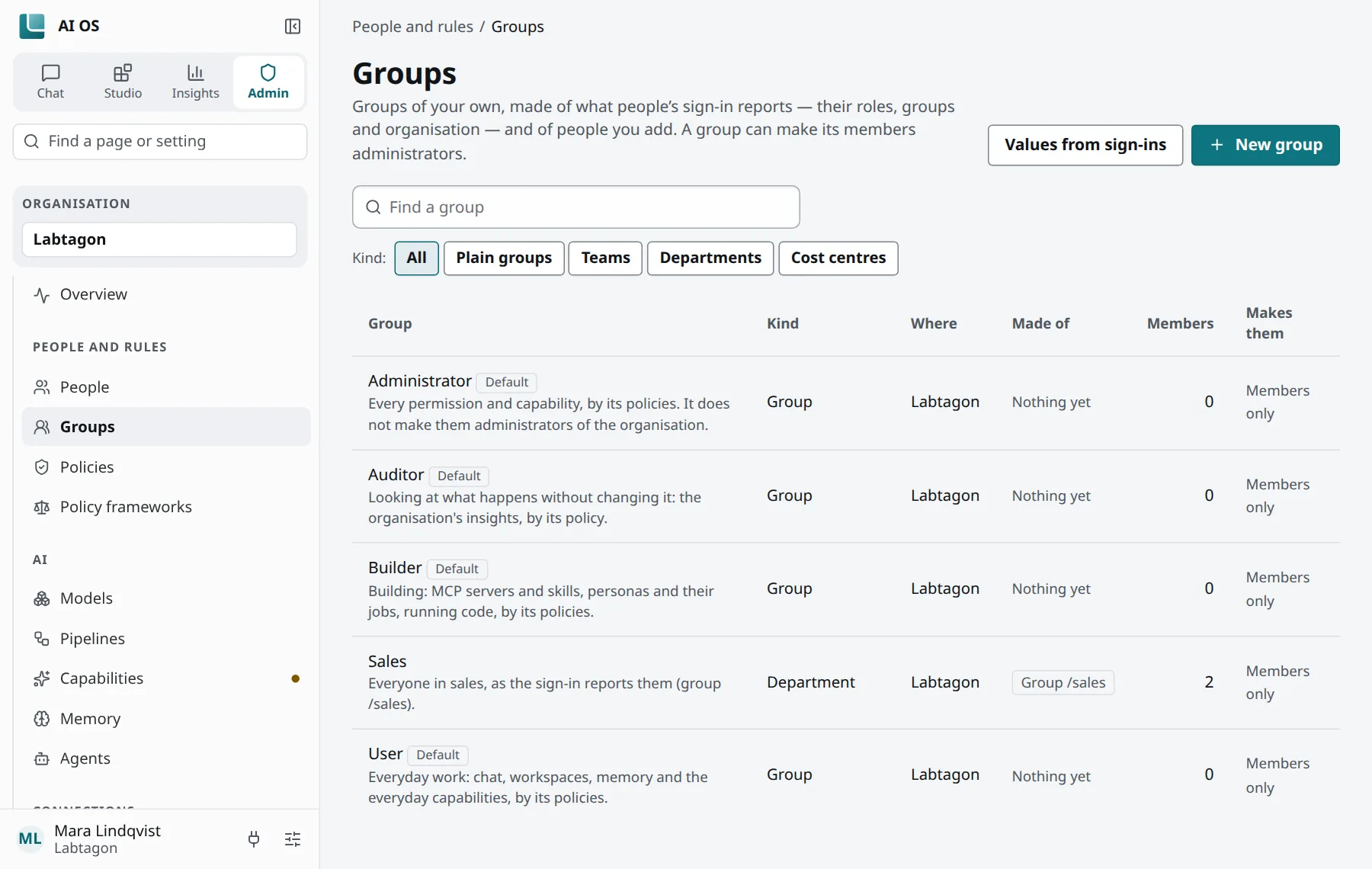
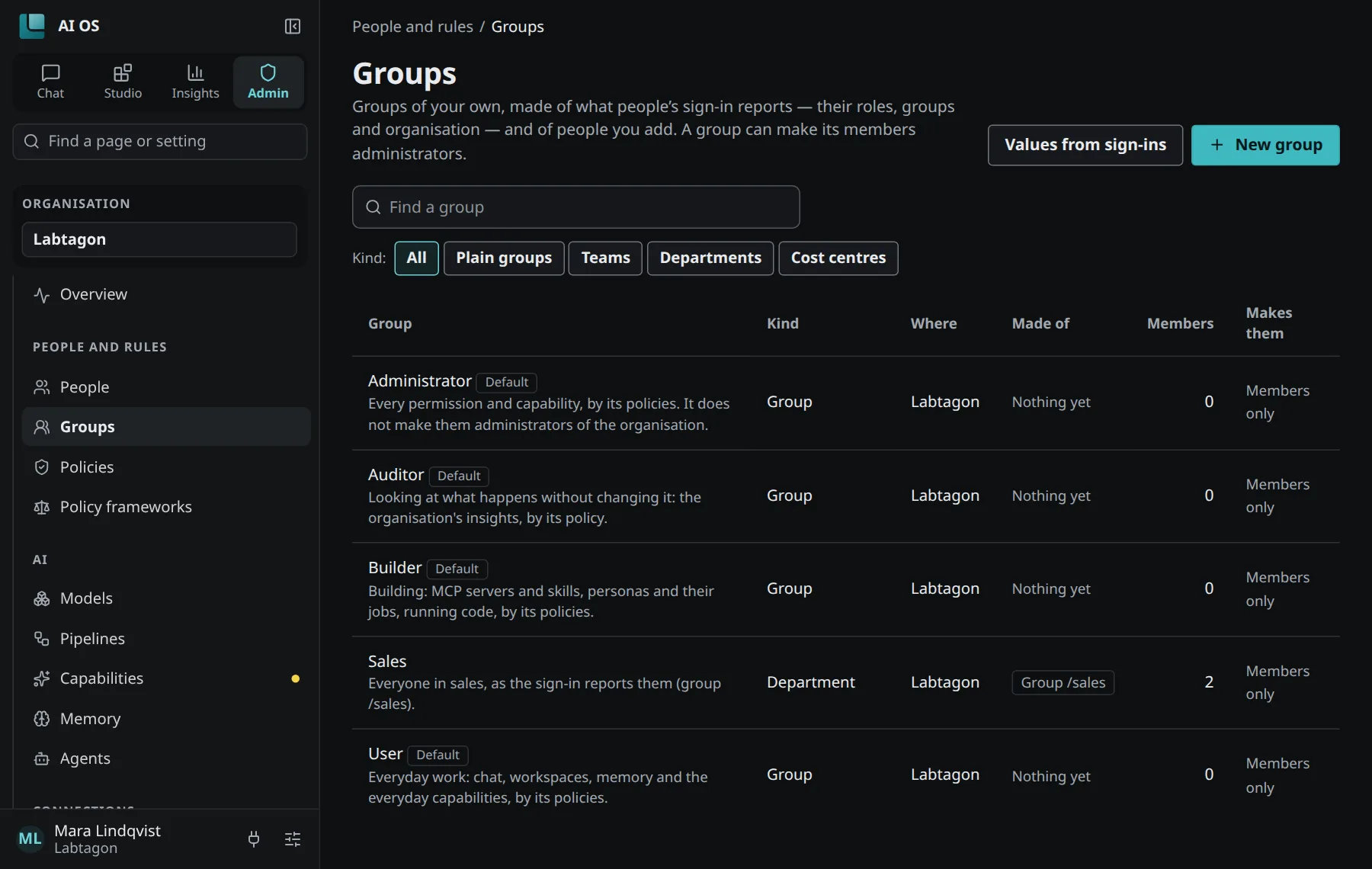
Section titled “Groups”Control Panel → Groups shows the organisation’s groups. A group has a kind: Group, Team, Department or Cost centre. A team can sit in a department. A person in two cost centres is flagged (In two cost centres).
Made of the sign-in
Section titled “Made of the sign-in”A group is Made of values the sign-in reported: a Role, a Group (for example /sales),
an Organisation or another Claim. Every value AI OS has seen is listed under Values from
sign-ins, so you pick from what really arrives. Which further claims count, for example a
department or a cost centre, is the setting groups.claims.
Membership follows the sign-in: someone who carries the value now is in the group. Besides, you can add people by hand (Added by hand). On a person’s page you remove them only from groups you added them to by hand; a value from the sign-in keeps them in.
What a group makes its members
Section titled “What a group makes its members”Makes its members can make the members Administrators of its organisation, or, for groups that hold in every organisation, Platform administrators. Only the platform changes such a group.
The default groups
Section titled “The default groups”Every organisation has four groups, marked Default: User, Builder, Auditor and Administrator. They start empty: map them to values from your sign-in or add people. They can be deleted once no policy names them. Their policies give at first:
| Group | Gives |
|---|---|
| User | Creating workspaces; generating and editing pictures, web search, reading aloud, transcription, memory. |
| Builder | Building, creating agents and running them on schedules and webhooks; running code, agents. |
| Auditor | The organisation’s insights. |
| Administrator | Every permission and capability. It does not make its members the organisation’s administrators. |
Permissions
Section titled “Permissions”What people may do in AI OS is given by Permissions policies (see Policies). The catalog:
| Permission | In a new organisation’s policy Everyone |
|---|---|
| Create agents | yes |
| Run agents on schedules and webhooks | yes |
| Create workspaces | yes |
| Build | yes |
| Approve agent templates | no |
| See the organisation’s insights | no |
| Manage policies | no |
| Manage every tool server and skill | no |
| Use every tool server and skill | no |
| Oversee every agent | no |
| Change every agent | no |
| Manage people | no |
| Manage groups | no |
| Manage the organisation’s settings | no |
| Manage models and connections | no |
| Oversee memory | no |
Everyone is a system policy that gives what everyone in the organisation may do; you empty it or fill it item by item. The other permissions go to the default group Administrator, or to the groups and people your own policies name. The last person who may manage policies cannot lose that permission.
What applies to someone (under Policies) shows, for one person, every policy that reaches them and what they get from it.