Introducing AI in your organisation
This guide is for the people who bring AI into their organisation with Labtagon AI OS: IT, a project lead, a team that goes first. It shows an order that works, and what AI OS gives you for each step. Everything you set here, you can change later.
1. Start with one team
Section titled “1. Start with one team”Begin with a team that has a real task for AI and wants to try it: a support team that answers the same questions every day, or a team that writes many reports. A few weeks with one team teach you more than a launch for everyone.
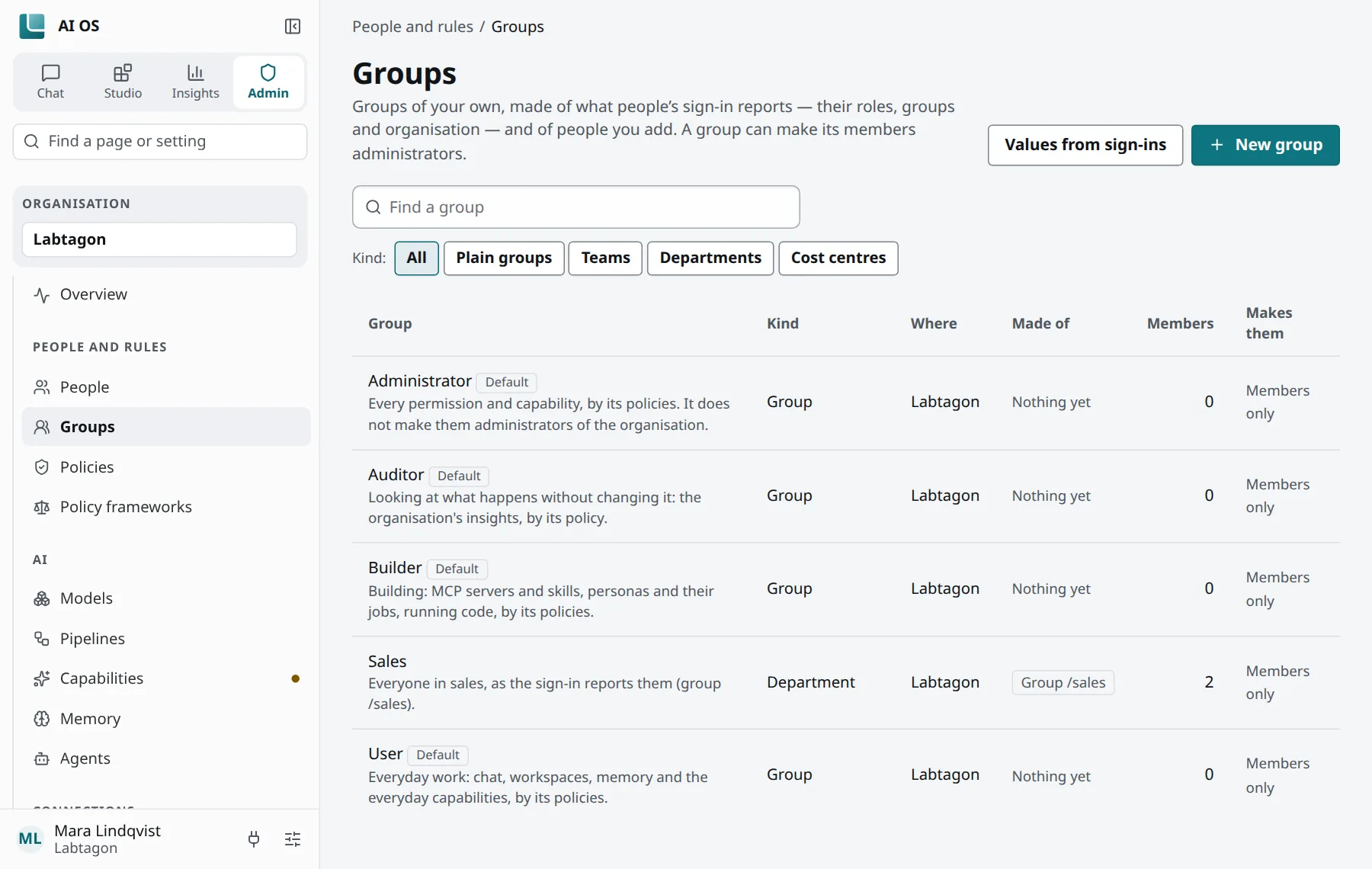
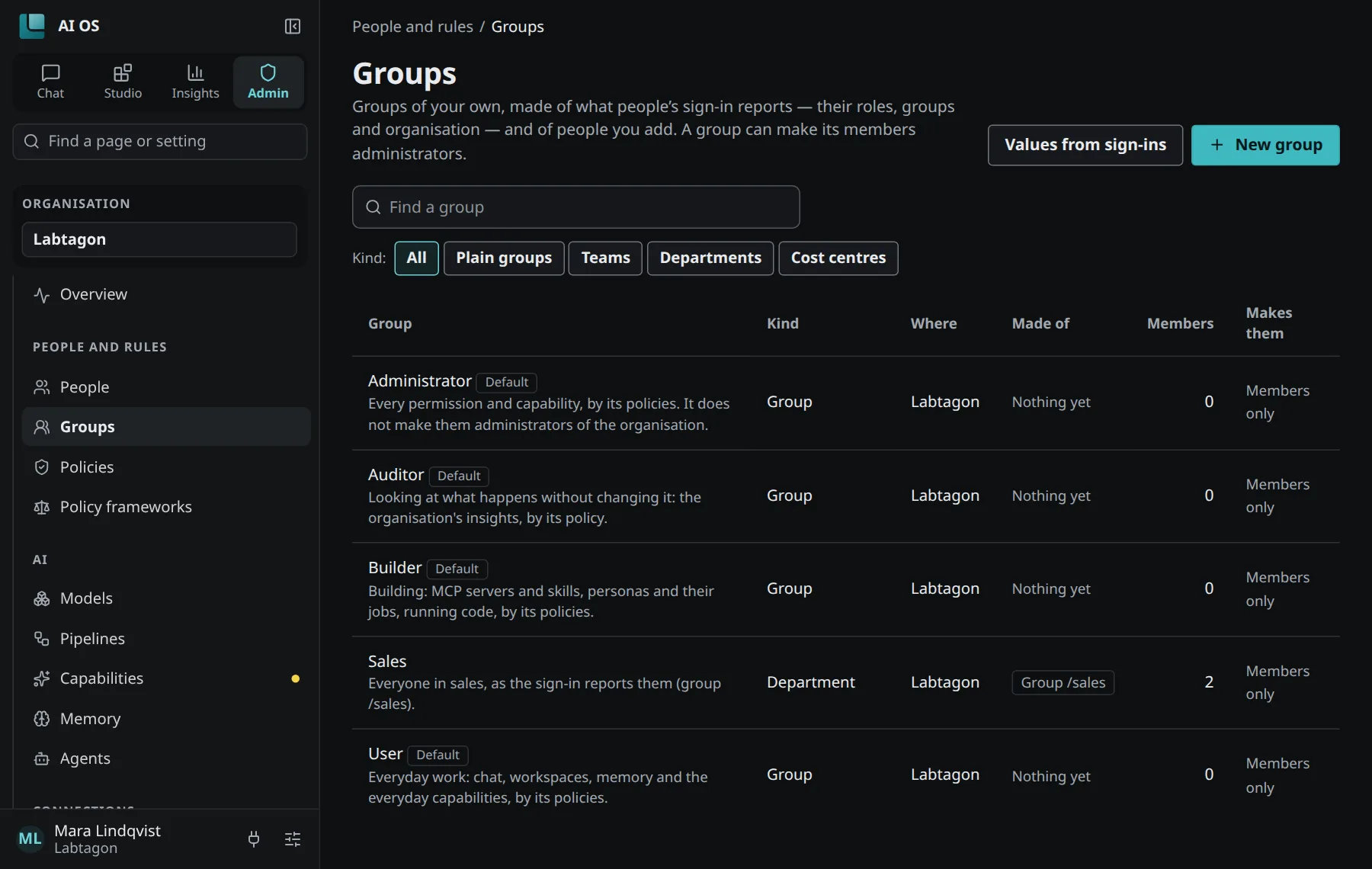
In AI OS, a team is a group:
- Control Panel → Groups makes groups from what people’s sign-in reports (their roles or groups at your sign-in service), or from people you add by hand.
- Every policy reaches everyone, groups or people. With a group for the first team, you give it what it needs without changing anything for the others.
2. Set up the models
Section titled “2. Set up the models”Every model call goes through AI OS, so this is where you decide which models people use:
- Control Panel → LLM providers: where model calls go, and how AI OS signs in there.
- Control Panel → Models: the providers’ models people may use, what each does and costs.
- A Model access policy says which models a group may use, whether its people may create API keys of their own, and which budgets apply: per person, or for everyone it reaches together.
Under Insights you then see spend by model and by month, and how much budget is left.
3. Give the team its tools
Section titled “3. Give the team its tools”Tool servers and skills make AI useful for the team’s actual work, such as its ticket system or its wiki.
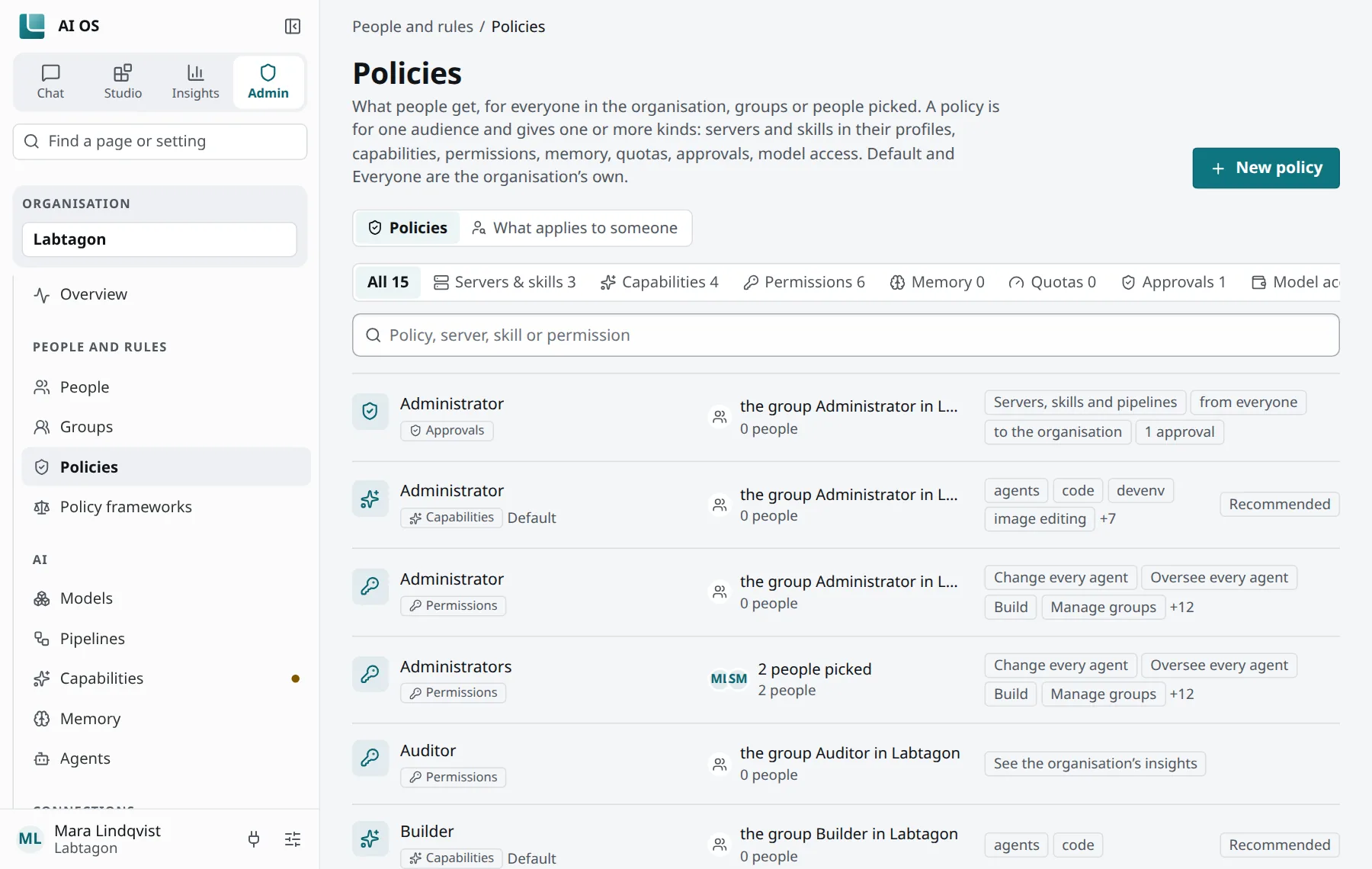
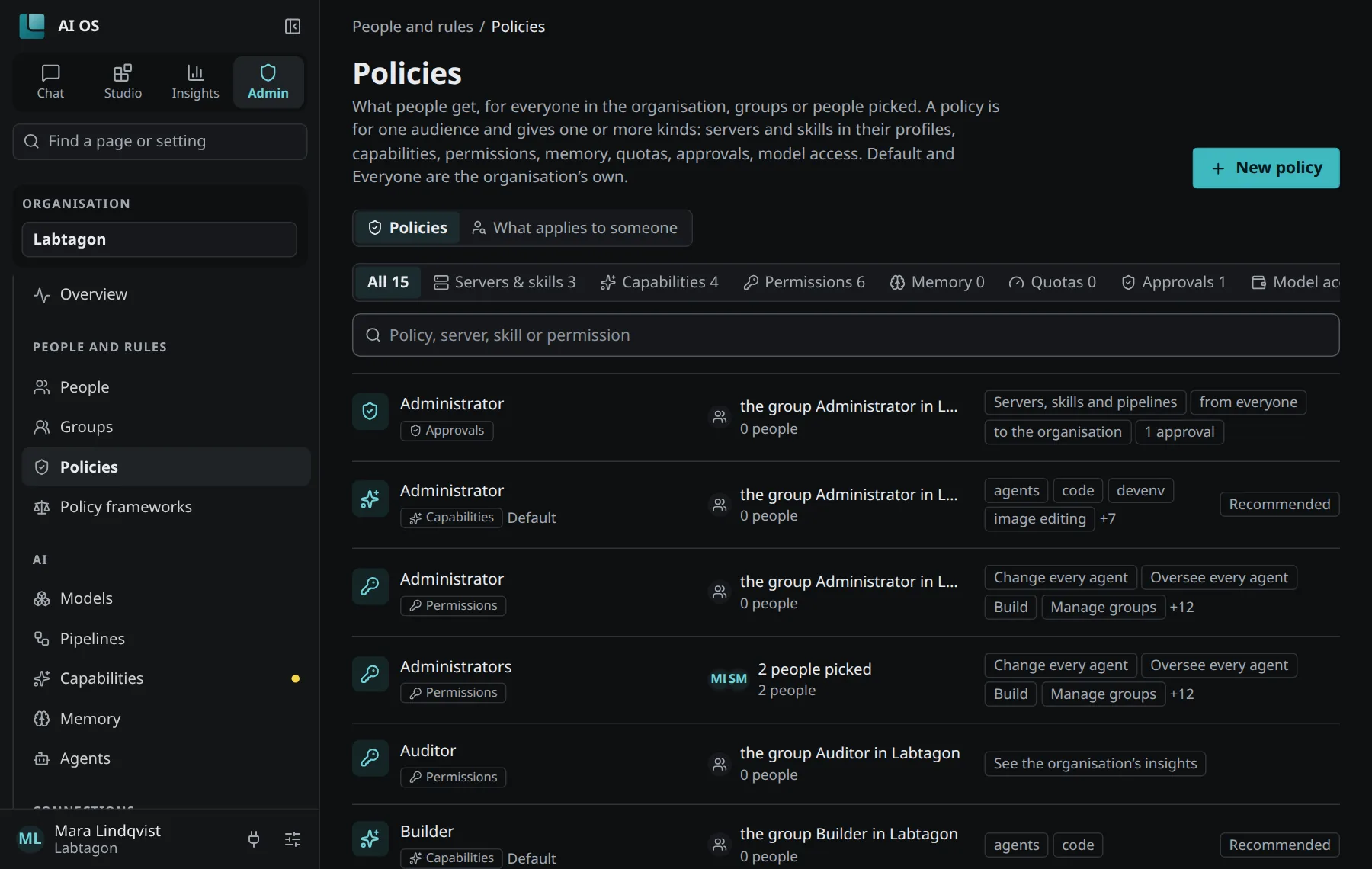
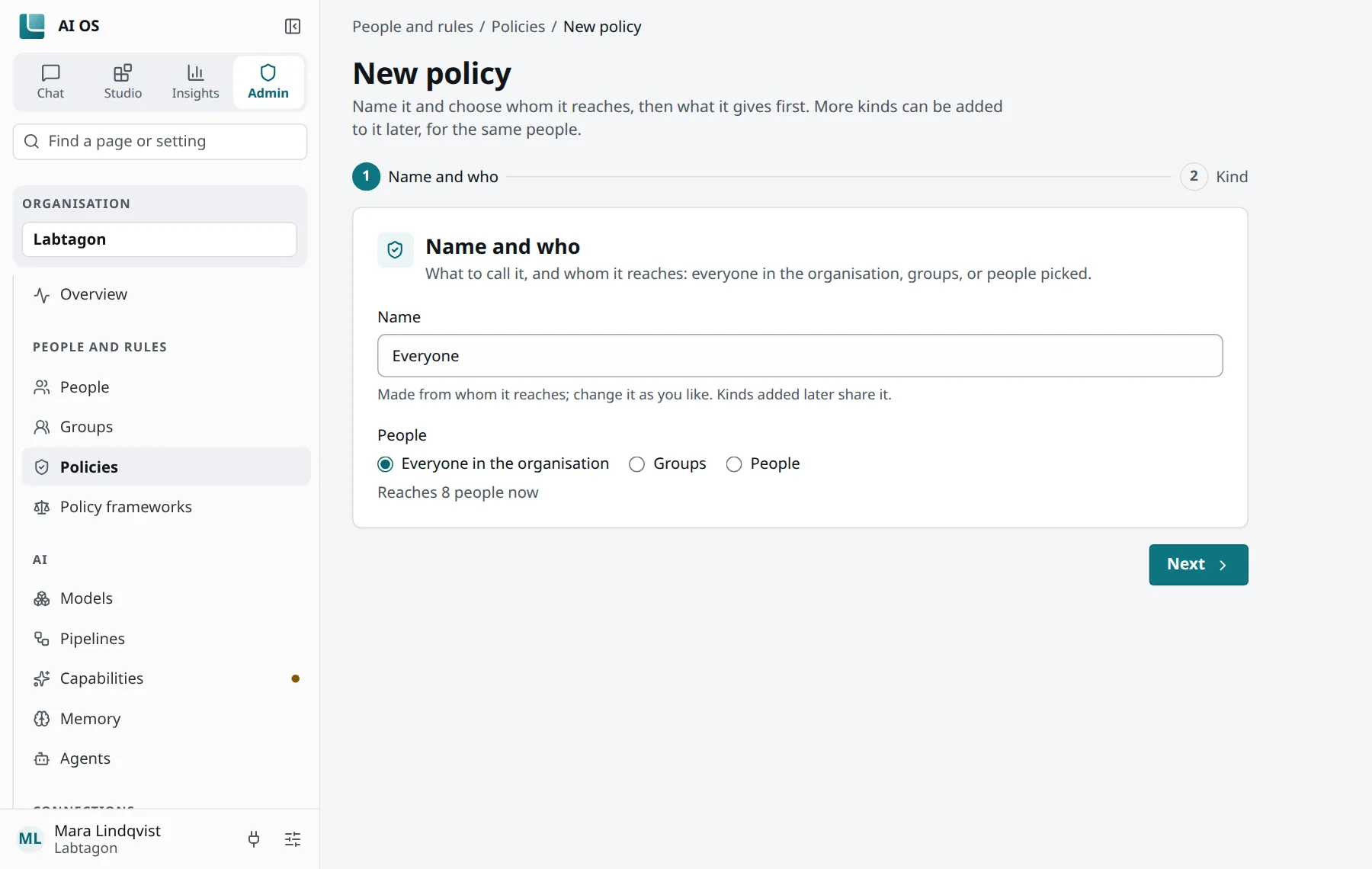
- Under Control Panel → Policies click New policy. Name it and choose whom it reaches.
- Add Servers and skills, each as Recommended (people may take it out of their profile) or Required (they cannot).
- Choose the profile it goes into: everyone’s Default profile, or a named profile that AI OS makes for each person.
People then find these in their profiles. See Profiles.
4. Choose the capabilities
Section titled “4. Choose the capabilities”Capabilities are what the chat and agents can do besides the tools: generate and edit pictures, search the web, read documents, read aloud, transcribe, run code. Under Control Panel → Capabilities you switch them on and choose how each is done; a policy can allow them for some people only, with limits a day or a month and a budget.
Start with what the first team needs. Each capability you add later reaches people at once.
5. Decide what people may do
Section titled “5. Decide what people may do”A Permissions policy says what people may do in AI OS, for example create agents or run them on schedules and webhooks. By default everyone in the organisation may do both. If you prefer agents to start by hand while the team learns, take the second permission away from everyone and give it to the team.
6. Decide on privacy before the first chat
Section titled “6. Decide on privacy before the first chat”Go through these with your data protection officer, and with your works council if you have one:
- Personal data in prompts to models: off, mask or refuse. Masking needs the personal-data checker set up in your installation. See Security and privacy.
- Keep prompts: off unless you have a reason; when it is on, only administrators read them and every read is recorded.
- How long things stay: files, tool call contents, the tool call history, the audit log and memories each have a retention setting under Control Panel → Settings.
- Policy frameworks: rule sets from law (GDPR, the EU AI Act for deployers, NIS2, BetrVG) that set the settings they need and show whether your setup meets them.
Write down what you decided, and tell people. Trust comes from knowing the rules, not from the technology alone.
7. Show people how to start
Section titled “7. Show people how to start”Send the team First steps: sign in, a first chat, connect the AI tool they already use. Plan half an hour together where everyone tries one real task. Afterwards, ask what worked and what got in the way, and adjust the policies.
Answering your colleagues’ questions
Section titled “Answering your colleagues’ questions”People ask the same questions early on. Here are honest answers you can give, with what AI OS actually does.
“Can my manager read my chats?” The console shows a chat only to you and to the people you share it with, such as the members of a workspace. The contents of your tool calls only you see. When an administrator looks at your call history, that is in the audit log, and you see it in your activity. One exception you should say out loud: chats with agents are not private; the agent’s owner and the people who oversee agents can read them. And whoever operates the installation has access to its database, as with any system your organisation runs.
“Does the AI provider learn from our data?” That depends on the providers your organisation chose and its contracts with them; AI OS does not decide it. What AI OS does: it sends model calls only to the providers your administrators set up, and it can mask personal data before a call leaves.
“Can the AI do things in my name without asking me?” A client gets only what its profile allows. A call that has to ask first waits for your answer, and only you can approve it. Agents act as themselves with sign-ins of their own, never with yours.
“What does AI OS keep about me?” Security and privacy has the table: what is kept, where and for how long.
“Does my dictation go to the cloud?” No. Dictation in the chat is recognised on your device; the recording does not leave it.
“What if the AI is wrong?” It will be, sometimes. Check what matters, as you would with a colleague’s draft. What AI remembers, you can correct or have it forget. See Memory spaces.
After the first team
Section titled “After the first team”When the first team works well, widen the group or add the next team with a policy of its own. Insights shows you spend and use over time, so you can see where AI helps and where it does not yet.
More in this handbook
Section titled “More in this handbook”- People and groups: groups from the sign-in, the default groups, permissions.
- Policies: the seven kinds and how they combine.
- Models and providers and Capabilities.
- Policy frameworks: rule sets from law.