Profiles
A profile says what a client may use: which tool servers, with which of their tools and with which of your sign-ins or keys, which skills and which capabilities. A client gets nothing that is not in its profile.
With profiles you give each AI tool what it needs, and no more: Claude Code a profile for coding, Claude in the browser one for research, for example.
The profiles you start with
Section titled “The profiles you start with”- Default is everyone’s first profile and cannot be deleted. Clients without a profile of their own use it. Your organisation can put tool servers and skills into it for you.
- Chat is the profile of the chat in the console. The chat uses it, and nothing else.
You find your profiles in Studio under Profiles.
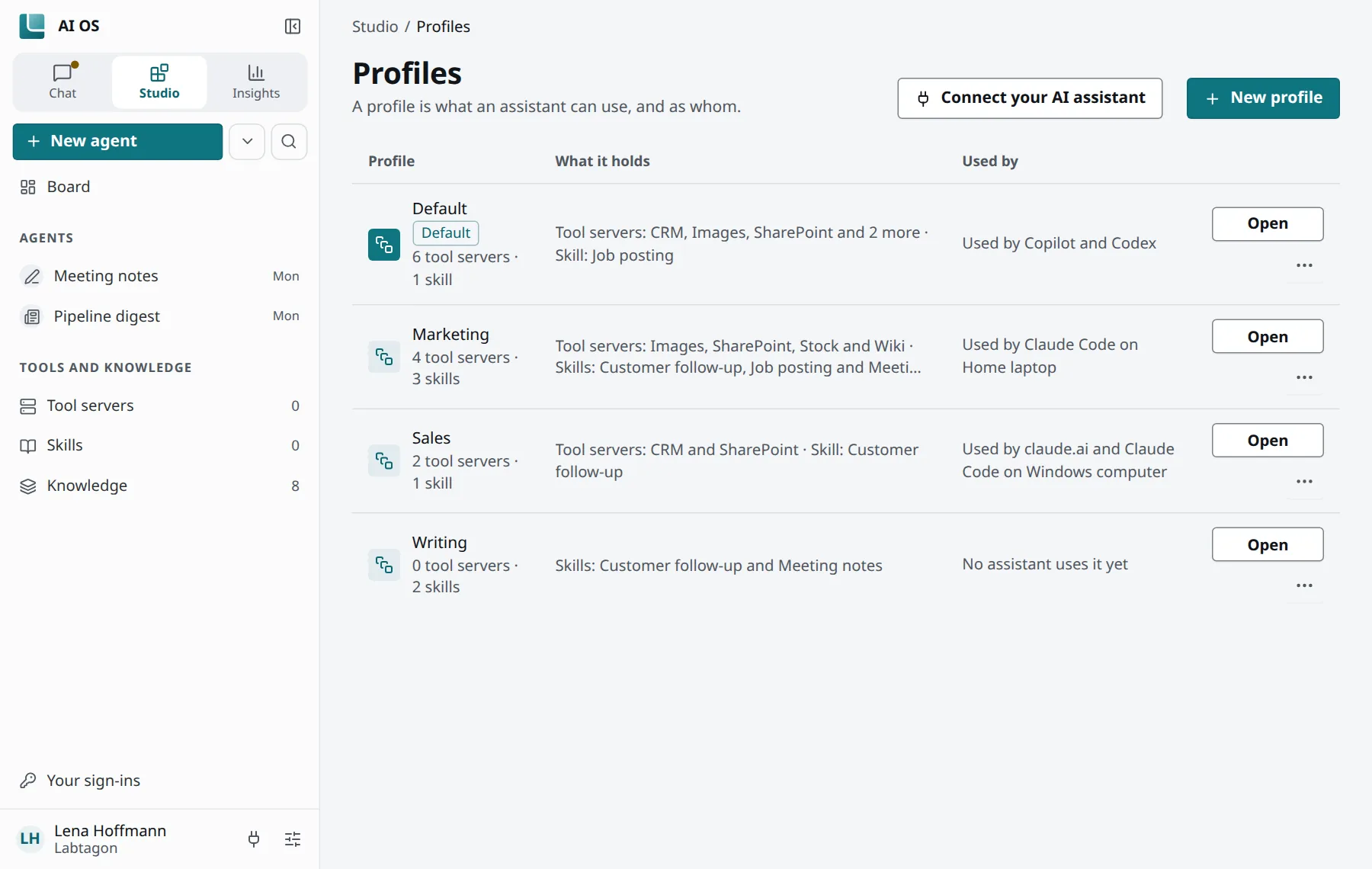
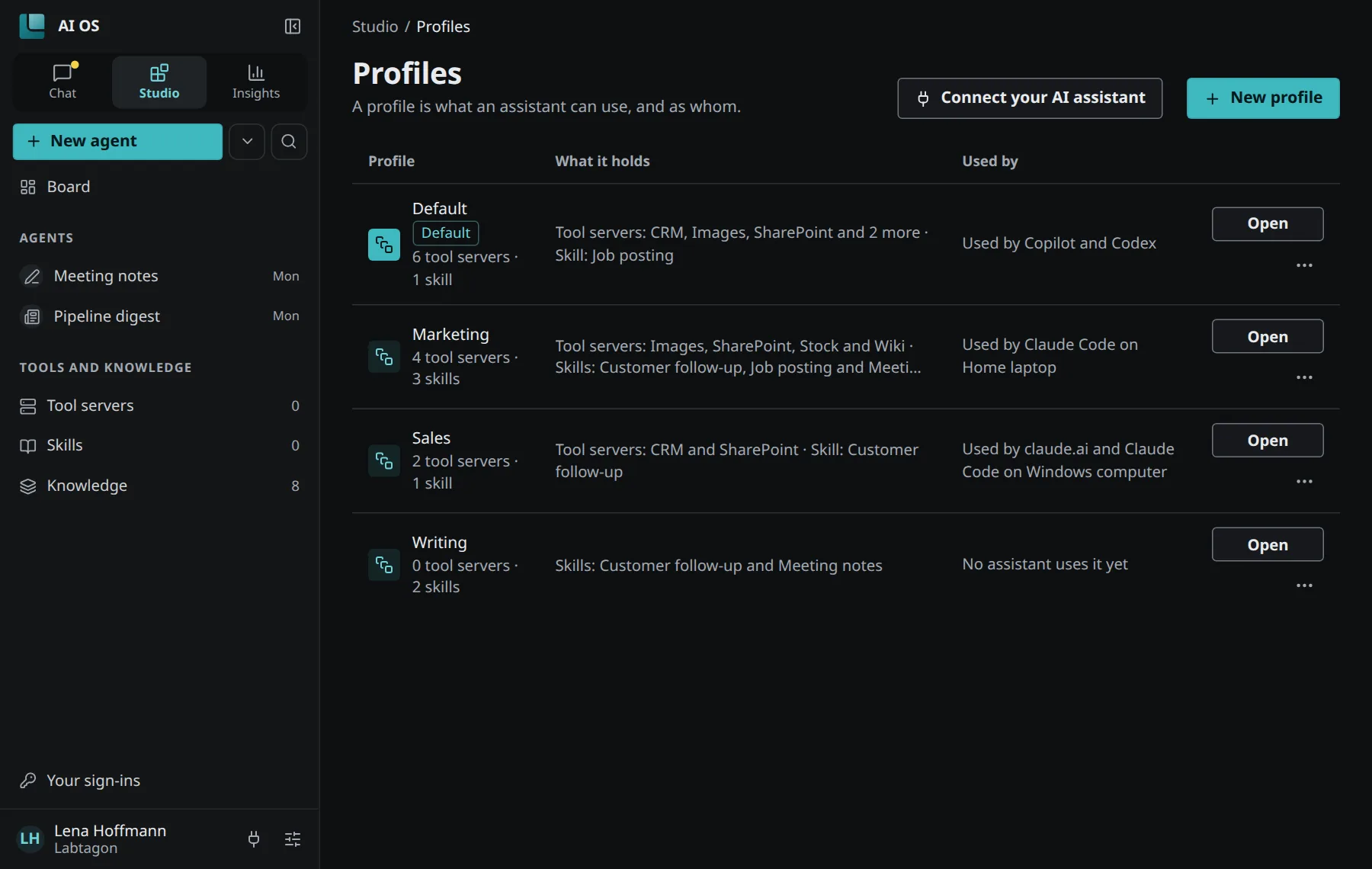
What a profile holds
Section titled “What a profile holds”A profile’s page has these tabs:
- Tool servers: each with what a client may do with it, and the sign-in or key it uses there.
- Skills: the written procedures a client reads and follows.
- Capabilities: what AI OS does for the client besides its tool servers; Memory for this profile switches on its own memory space. See Memory spaces.
- Assistants: the clients that use this profile. Move an assistant here gives one of your clients this profile.
- Authoring: when it is on, clients with this profile may build and change tool servers and skills for you. You are asked for sign-ins and keys; nothing is shared on your behalf.
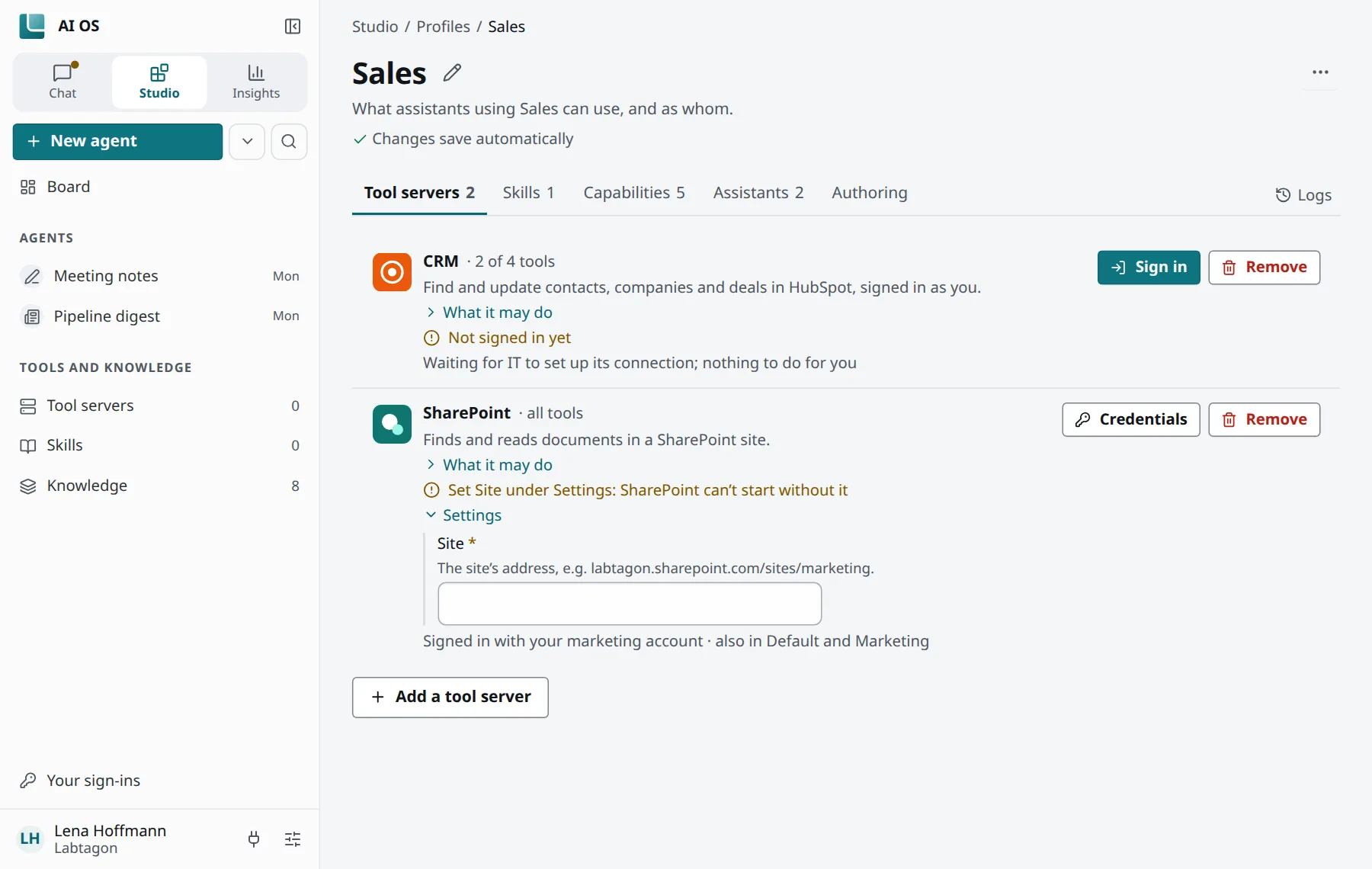
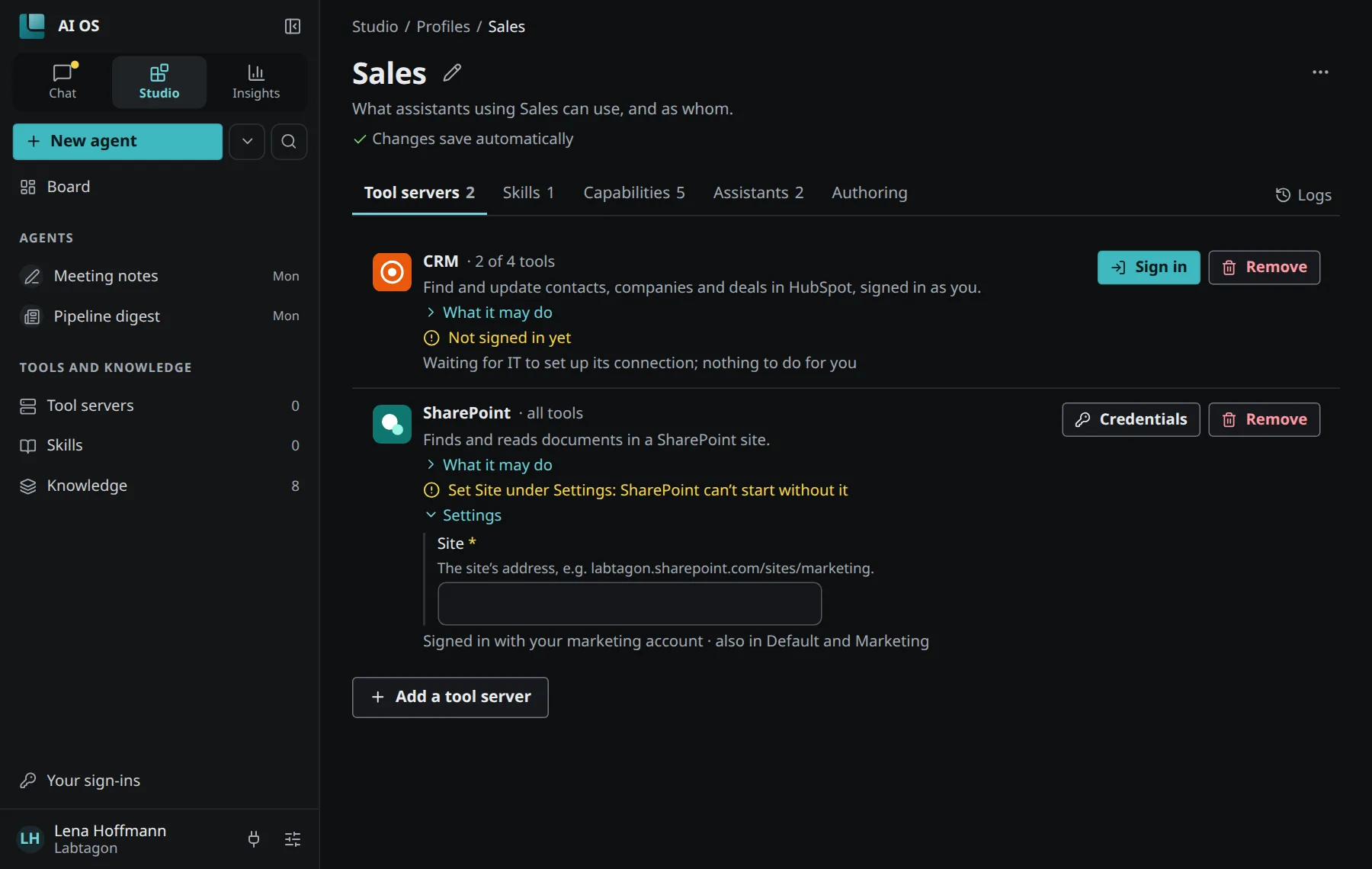
What a client may do with a tool server
Section titled “What a client may do with a tool server”For each tool server in a profile you choose:
| Choice | Which tools |
|---|---|
| Read only | Only tools that look things up. |
| Read & write | Tools that look things up or create and change something; nothing that deletes, costs money or changes rights. |
| Everything | Every tool, also ones a later version adds. |
| Custom | Only the tools you tick. New ones stay off. |
Which kind a tool is, its tool server declares. A tool server that allows it can be in one profile more than once, each time with another account: Add … again, for another account.
Create a profile
Section titled “Create a profile”- In Studio, open Profiles and click New profile.
- Give it a name and choose how it starts: Nothing, or A copy of Default.
- Add tool servers with Add a tool server and skills with Add a skill. You can also find them under Browse and use Add to profile.
Which profile a client uses
Section titled “Which profile a client uses”When a client signs in and you have more than one profile, AI OS asks which one it uses. You can also create a new one there. Later you change it under Tools, skills and clients at the foot of the sidebar, or with Move an assistant here on the profile.
What your organisation sets
Section titled “What your organisation sets”Administrators give tool servers and skills to people with policies, as Recommended (you may take it out) or Required (you cannot). In a profile you see where something came from, for example “Required by …” or “From the policy …”. Policies fill people’s profiles, not those of agents.