First steps
This page takes you through your first minutes with Labtagon AI OS: signing in, a first chat, and connecting the AI tool you already use.
Sign in
Section titled “Sign in”- Open the address of AI OS that your IT team gave you.
- Click Sign in. Your company’s sign-in page opens; sign in as you always do.
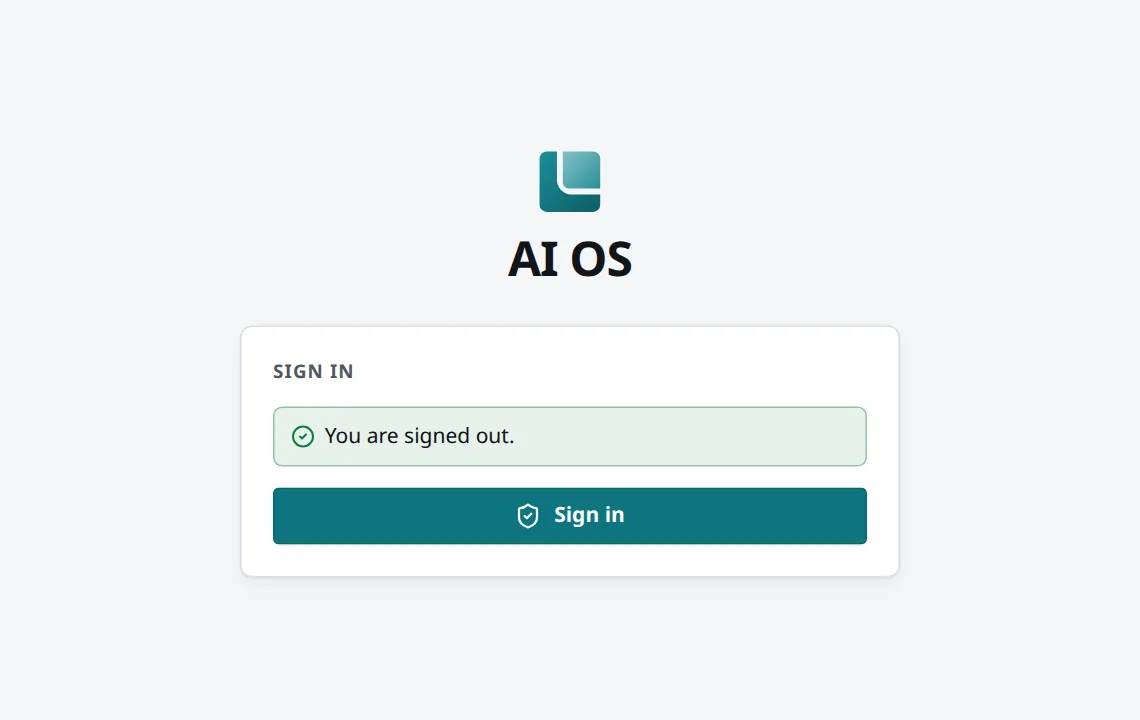
You land in the Chat. Your name at the foot of the sidebar opens your Settings: there you choose the language (English, Deutsch (du) or Deutsch (Sie)), the appearance and notifications.
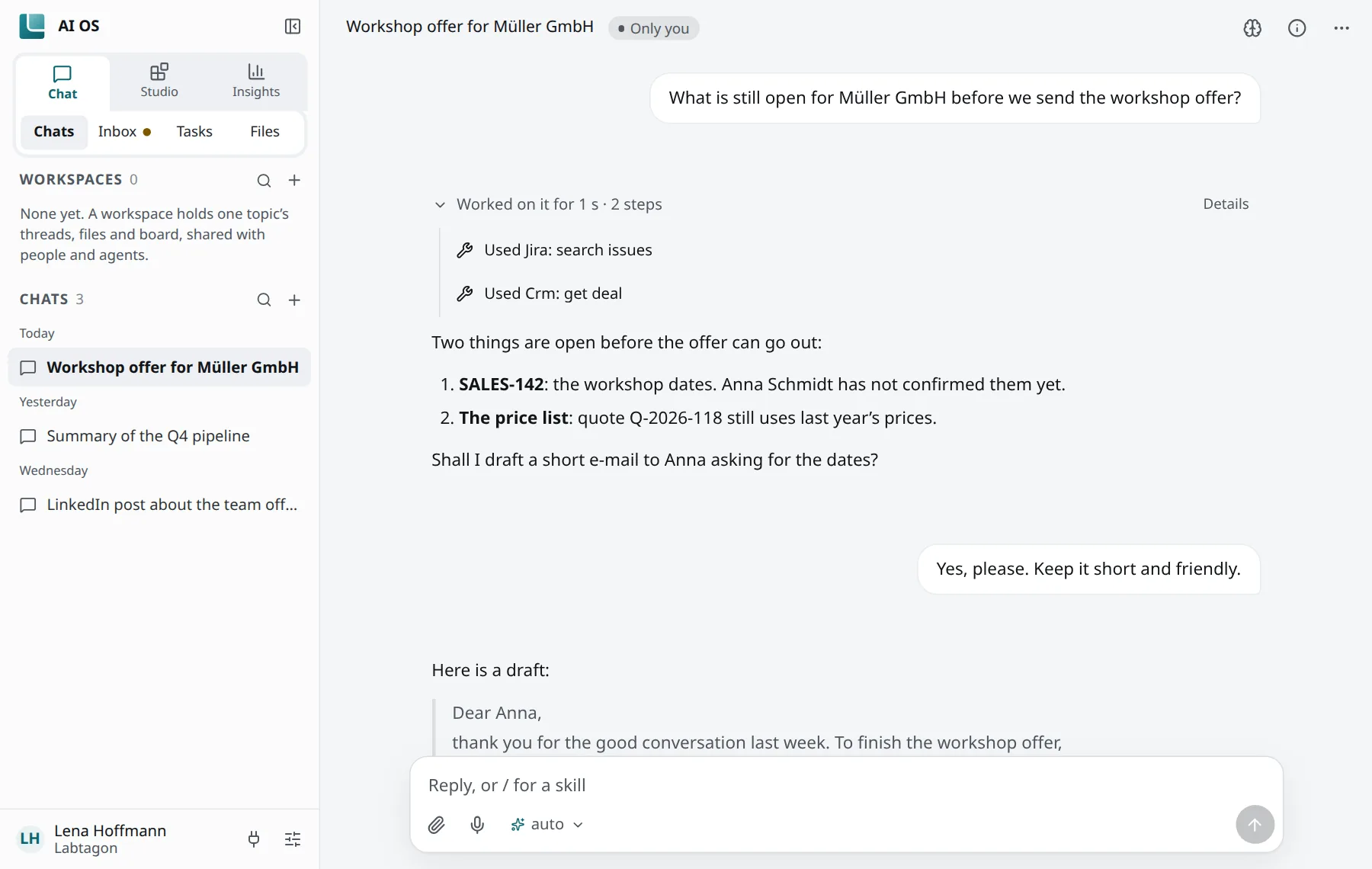
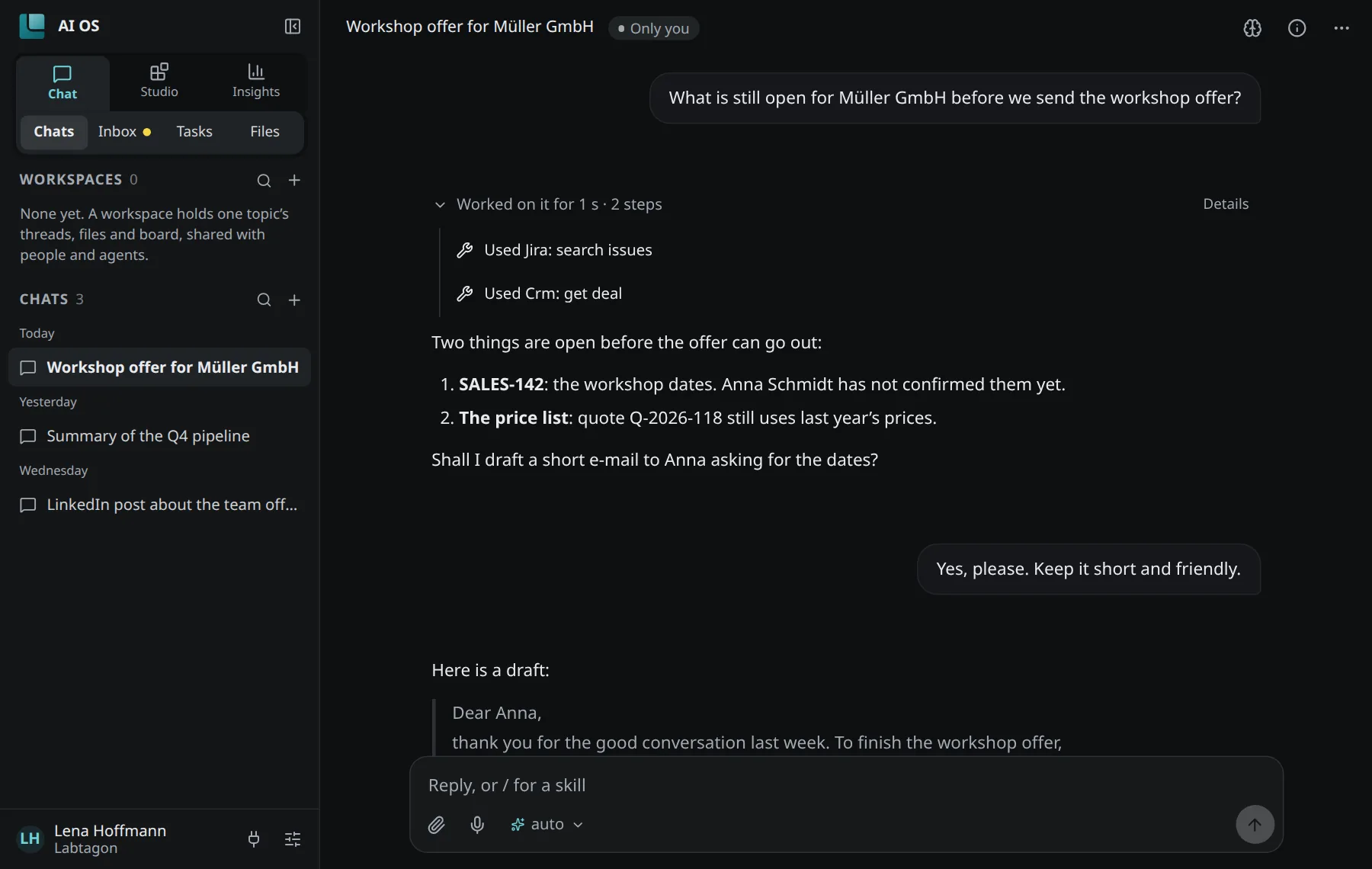
Your first chat
Section titled “Your first chat”- Click + (New chat) at the top of the chat list.
- Type your question in the box and press Enter.
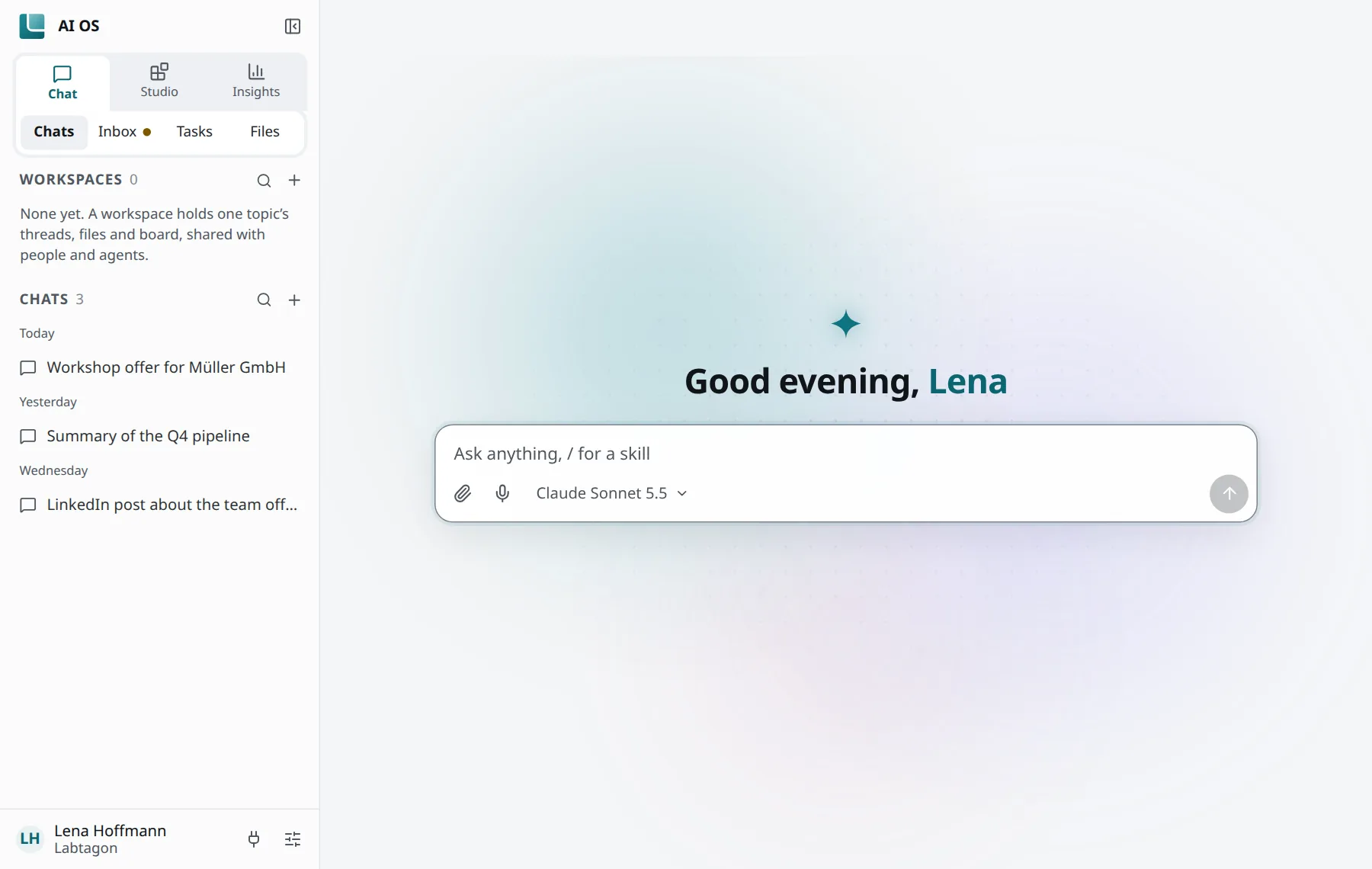
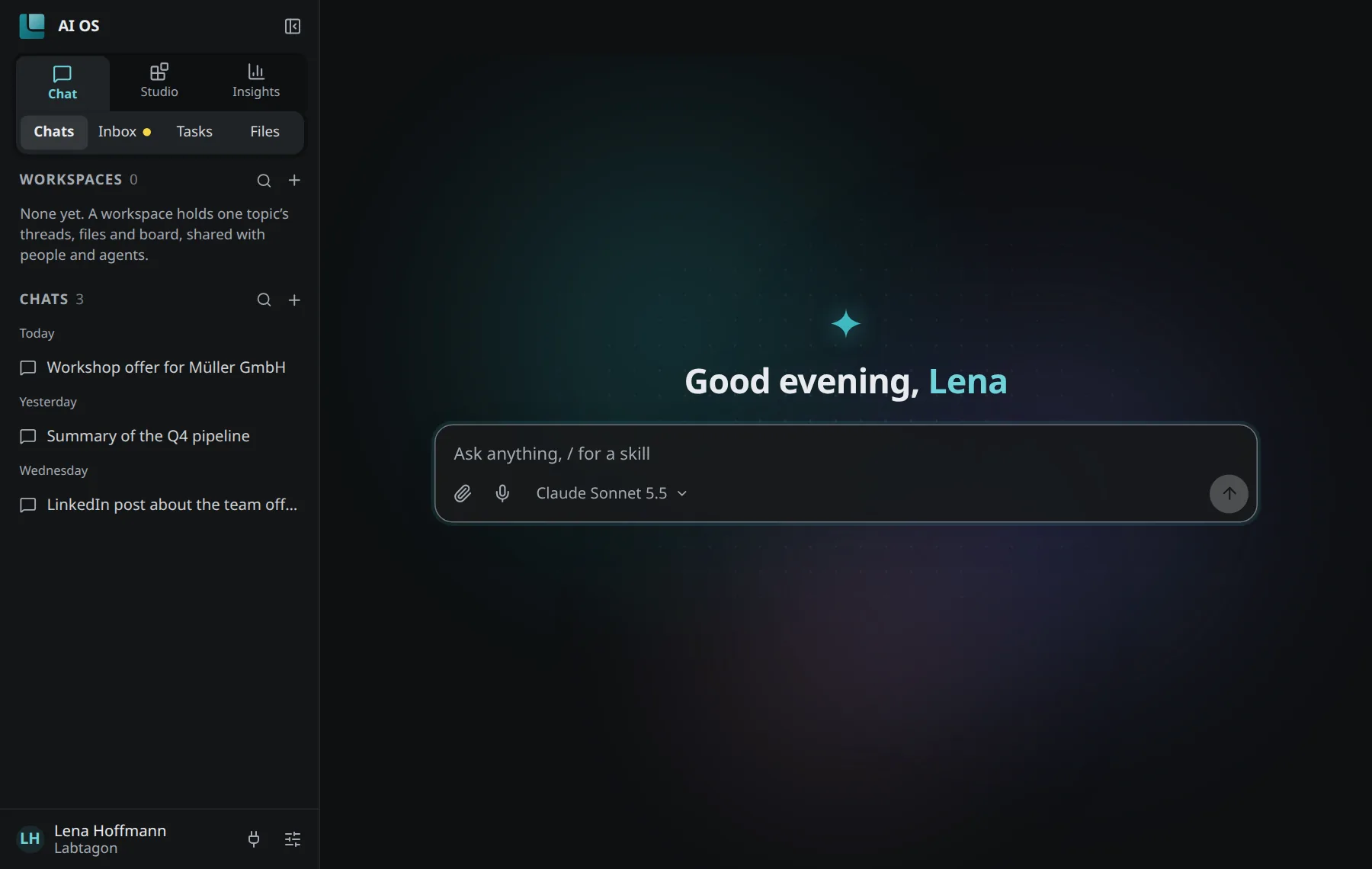
Around the box:
- Model opens the list of models your organisation offers. Auto lets AI OS choose.
- Attach files adds documents or pictures to your message.
- Dictate turns speech into text. It works only where your browser can recognise speech on your device; the recording does not leave it.
- Type
/to use a skill,@to add something, such as a file.
The chat uses a profile of its own, called Chat: its tools and skills are what the chat can use. See Profiles.
When the chat calls a tool that has to ask you first, it waits for your answer. See Tasks and approvals.
Connect your AI tool
Section titled “Connect your AI tool”You can use AI OS from the AI tools you already work with. It then gives them the tool servers and skills you have here, through one address.
- Click Connect your AI assistant at the top right (on a narrow screen: Connect AI).
- Choose your tool:
- Claude works at claude.ai and in the Claude apps.
- Copilot or another app: your IT team connects it for you. Send them the address shown.
- For Claude Code, Codex, Cursor and others, open the row for developers. It shows the steps for each tool.
- Follow the steps. At the end your company sign-in opens in the browser.
- If you have more than one profile, AI OS asks which one the tool uses: “Choose the profile it uses. It only gets what is in that profile.” Pick one, or create a new one, and click Continue.
Once your tool has called AI OS, the button shows Your AI assistant with a tick.
Example: Claude Code
Section titled “Example: Claude Code”The steps show the exact command for your installation, with its address. It looks like this:
claude mcp add --transport http --scope user --client-id claude-code <name> https://<your-ai-os>/mcpThen type /mcp in Claude Code, pick the connection and choose Sign in, or run
claude mcp login <name>. Your company sign-in opens in the browser.
If your installation offers a Claude Code plugin, the steps show it first. It brings the connection and AI OS’s skills in one go.
The exact steps for each tool are in Connecting clients.
What next
Section titled “What next”- See which tools and skills your tool gets: Profiles.
- Understand what happens to your data: Security and privacy.
- Take your chats with you: Exporting chats.