Chatting and choosing a model
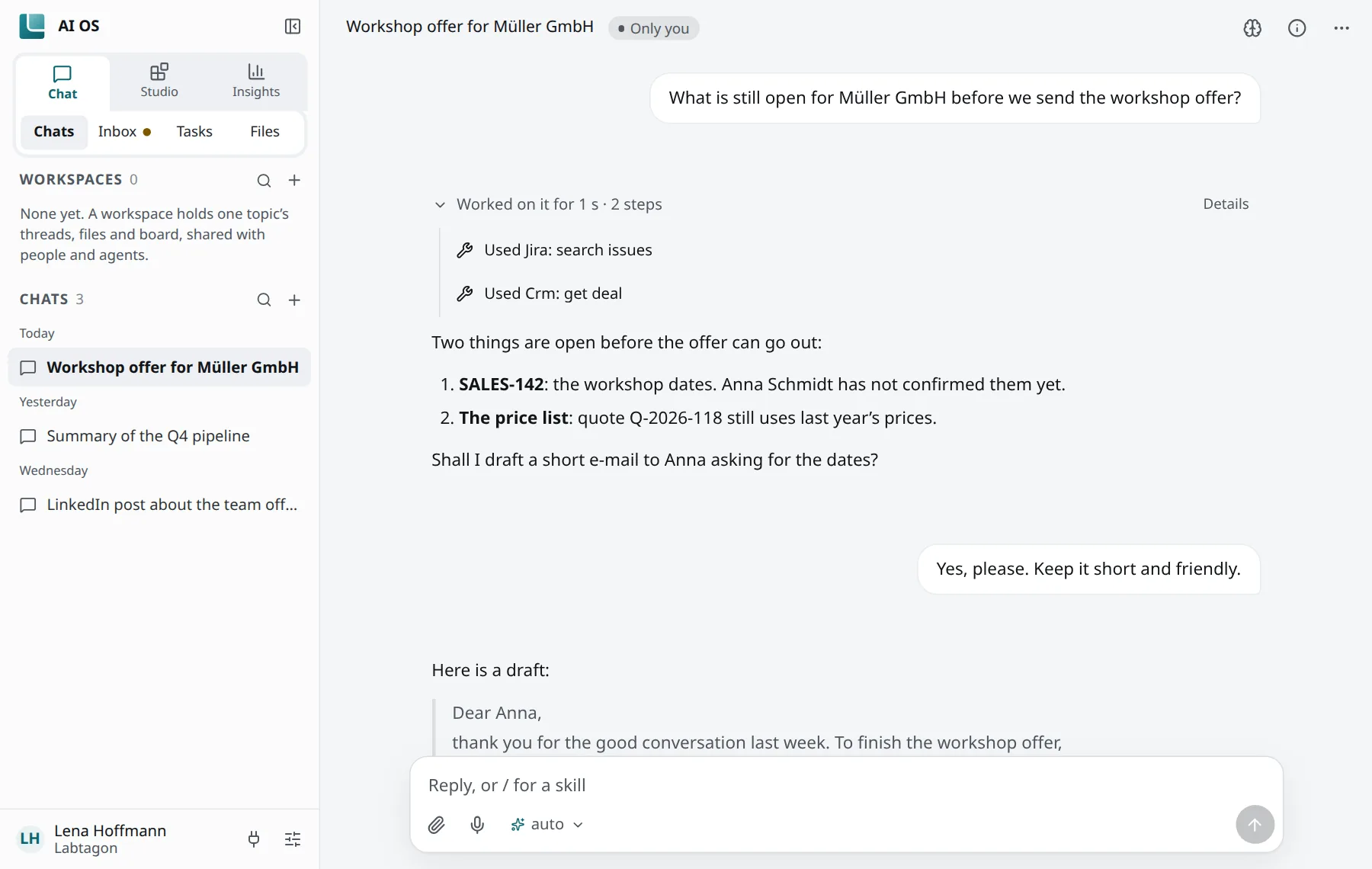
The chat is where you work with AI in Labtagon AI OS. This page goes through what is around the box you type in, how a model is chosen, and what you can do with messages and chats.
Writing a message
Section titled “Writing a message”Type into the box and press Enter to send; Shift+Enter starts a new line. When you start typing anywhere on the page, the text goes into the box.
- Type
/to use a skill and@to bring in something: one of your agents, or a file, note, page or thread of this chat or workspace. Pick with the arrow keys and Enter or Tab; Esc closes the list. - While an answer is being written, the box says Add to what it is doing…: what you send then is answered once this answer is done. Queued messages show Answered after this answer, with Answer this now, Pause and Take back.
- Stop (Esc) stops the answer that is being written.
Choosing a model
Section titled “Choosing a model”The model is the pill below the box. It opens the list of models your organisation offers you:
- Each entry shows the model’s name and who makes it. · thinks marks a model that reasons before it answers; · searches the web, no tools one that cannot call tools.
- Auto lets AI OS pick a model for the conversation. It picks one that can take the turn: one that sees pictures when you attach pictures, reads files when you attach files, and has room for the conversation. Once it has picked, it keeps the model: “Auto picked … on the first message, and keeps it”.
- For models that reason, a second pill, How much it thinks, offers Off, Auto and Deep.
Changing the model in the middle of a conversation asks first (Change the model of this conversation?): the new model has to read the whole conversation again, so a new conversation is cheaper. Under each answer you see which model wrote it.
Which models you see is your organisation’s choice; see the Administration handbook. If no model is switched on for the chat, the console says so.
Files and pictures
Section titled “Files and pictures”Attach files with the paperclip (Attach files), by pasting them, or by dropping them on the box.
- A file may be up to 50 MB unless your organisation set another size.
- Pictures go to models that can see them. Office files, and PDFs or pictures for models that cannot read them, are first turned into text by the capability Read documents, when your organisation offers it. What a model gets from one file is cut at 40,000 characters.
- In the conversation, pictures show in place, audio gets a player, and other files are a link with their size.
A file you attach to a chat stays as long as the chat does and goes when you delete the chat. See Files and shares.
What you can do with a message
Section titled “What you can do with a message”Point at a message to see its actions:
- Copy, on your messages and on answers.
- Edit and send again on your own message: it removes that message and everything after it, and sends the changed one.
- Answer again on the last answer.
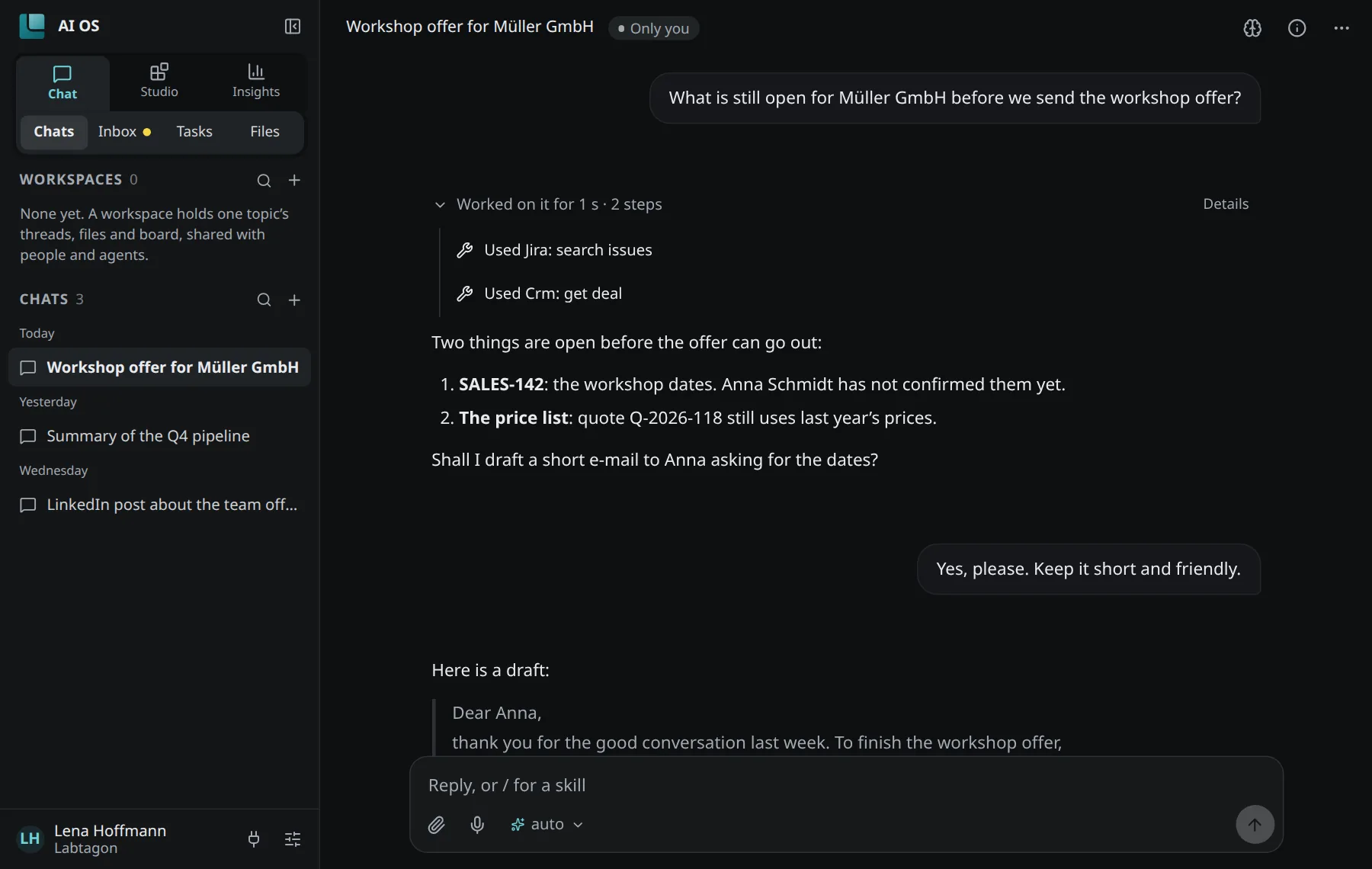
When the answer used tools, its steps are folded under it (Working on it, then the number of steps). In words says what each step did; Details shows the calls. A step that has to ask you first waits in the chat for your answer; see Tasks and approvals.
The chat and its header
Section titled “The chat and its header”- Click the title to rename the chat. A new chat is called New conversation until you or the chat name it.
- Who sees it shows and changes who may read the chat.
- The brain button opens Your personal memory: see Your memory.
- Details shows a summary, the pages and the files of the chat.
- More has Pin, Export… and, for the chat’s owner, Archive and Delete. Deleting removes the messages for everyone the chat is shared with, and the files attached there that nothing else holds.
A chat stays where it began: it cannot be moved into a workspace or out of one.
Your chat list
Section titled “Your chat list”The sidebar lists Workspaces and Chats, each with a search and a +. Chats are grouped by day; pinned ones are on top, and you can drag them into your own order. The search looks through titles and messages.
All chats shows every chat and workspace, Active, Archived or Pinned. Archive all archives everything that is not pinned.
Where the chat’s tools come from
Section titled “Where the chat’s tools come from”The chat uses a profile of its own, Chat. What is in it, tool servers, skills and capabilities, is what the chat can use. Tools, skills and clients at the foot of the sidebar opens it. See Profiles.